Isolating an Untrusted Device with a VLAN
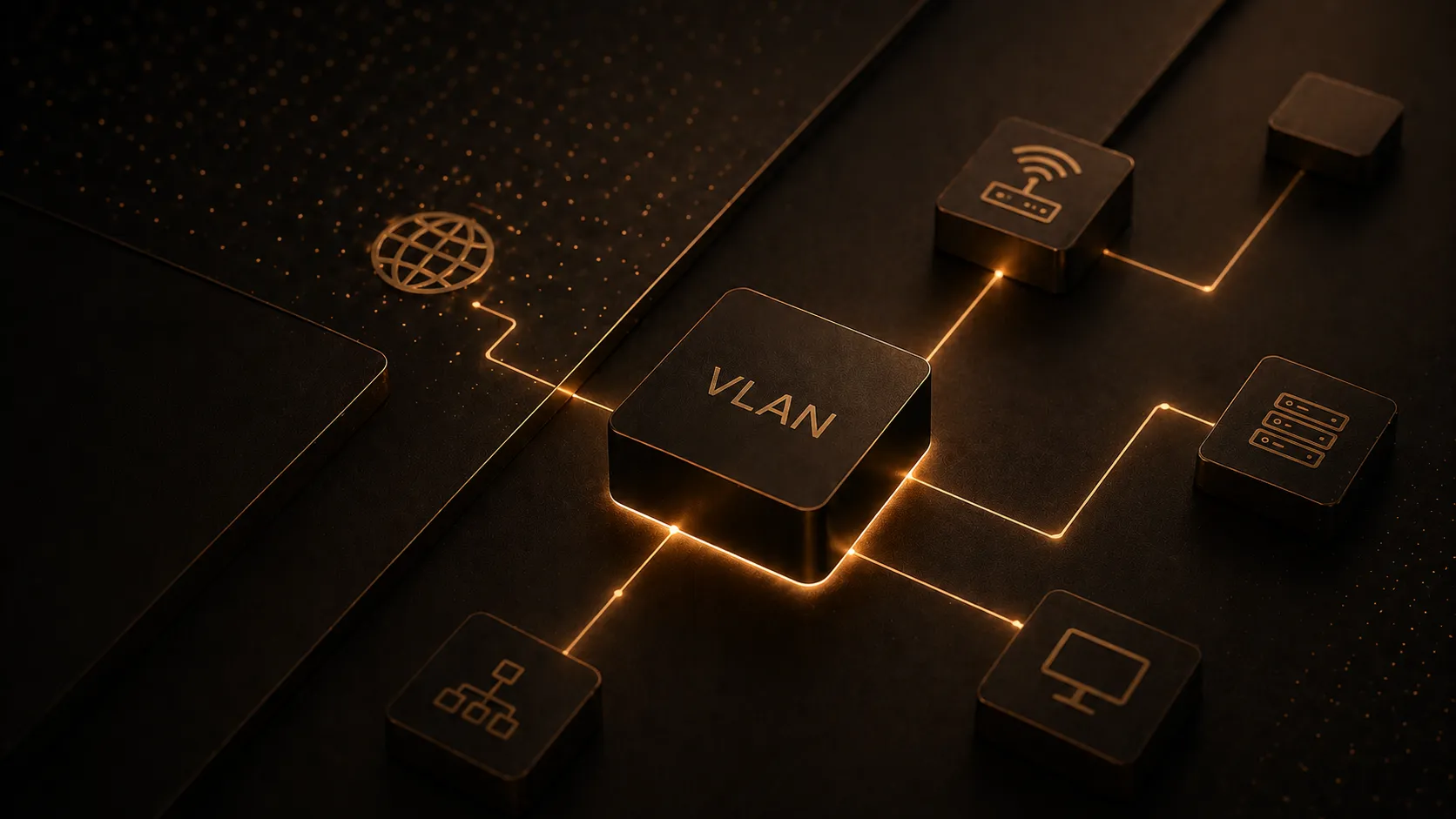
I set up a dedicated Wi-Fi VLAN for an untrusted streaming device on my home network. The goal was simple: give it internet access, but block it from reaching anything on my main LAN.
The result:
- Device connects to Wi-Fi normally
- Gets an IP from its own subnet
- Has full internet access
- Cannot reach the main LAN
- Cannot access router management
Why Isolate It?
Most home networks are flat. Every device sits on the same subnet and can talk to everything else. That’s convenient, but not ideal once you start adding IoT or untrusted devices.
Not every device on your network deserves the same level of trust.
My main LAN includes servers, PCs, and internal services. A streaming device doesn’t need access to any of that. It only needs internet.
Network Design
Main LAN
VLAN: 1
Subnet: 192.168.1.0/24
Gateway: 192.168.1.1

Isolated VLAN
VLAN: 50
Subnet: 192.168.50.0/24
Gateway: 192.168.50.1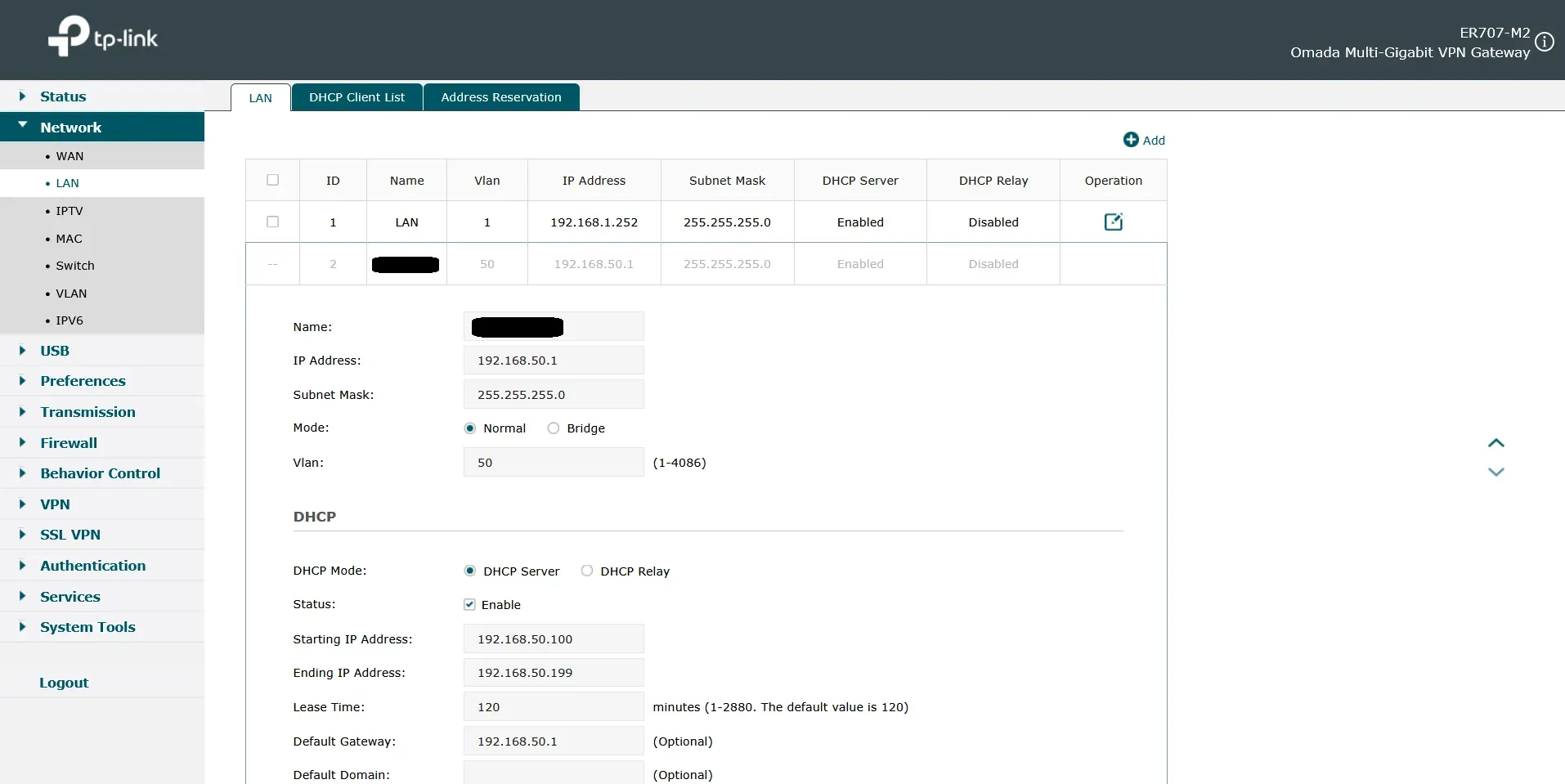
1. Create the VLAN on the Router
Create a new LAN interface for VLAN 50 with DHCP enabled.
VLAN ID: 50
Gateway: 192.168.50.1
Subnet: 255.255.255.0
DHCP Range: 192.168.50.100 - 192.168.50.199
The router must know about the VLAN. Creating it only on the switch or AP is not enough.
2. Configure VLANs on the Switch
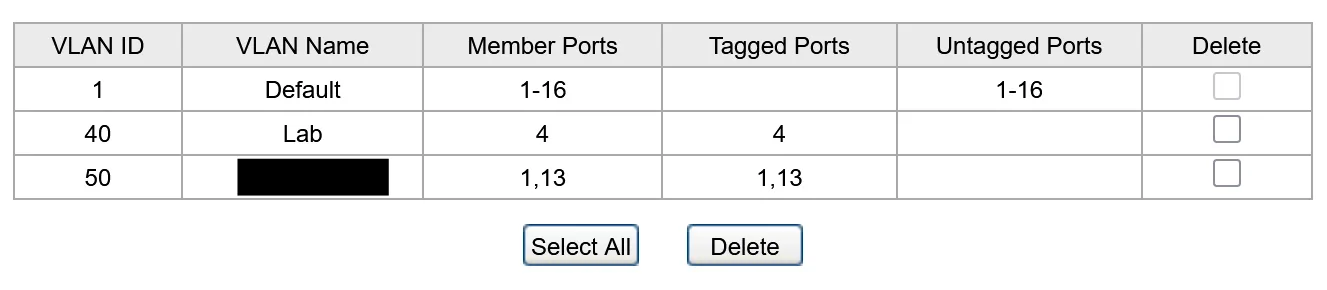
Allow VLAN 50 to pass between the router and access point as tagged traffic.
Router Port:
VLAN 1: Untagged
VLAN 50: Tagged

AP Port:
VLAN 1: Untagged
VLAN 50: Tagged

PVID: 1
The AP stays on the main LAN. Only wireless clients on the isolated SSID use VLAN 50.
3. Assign the SSID to VLAN 50
Create a dedicated Wi-Fi network and tag it with VLAN 50.
SSID: Isolated Network
VLAN: Enabled
VLAN ID: 50
Test with a device and confirm it gets a 192.168.50.x IP.
4. Block Access to the Main LAN
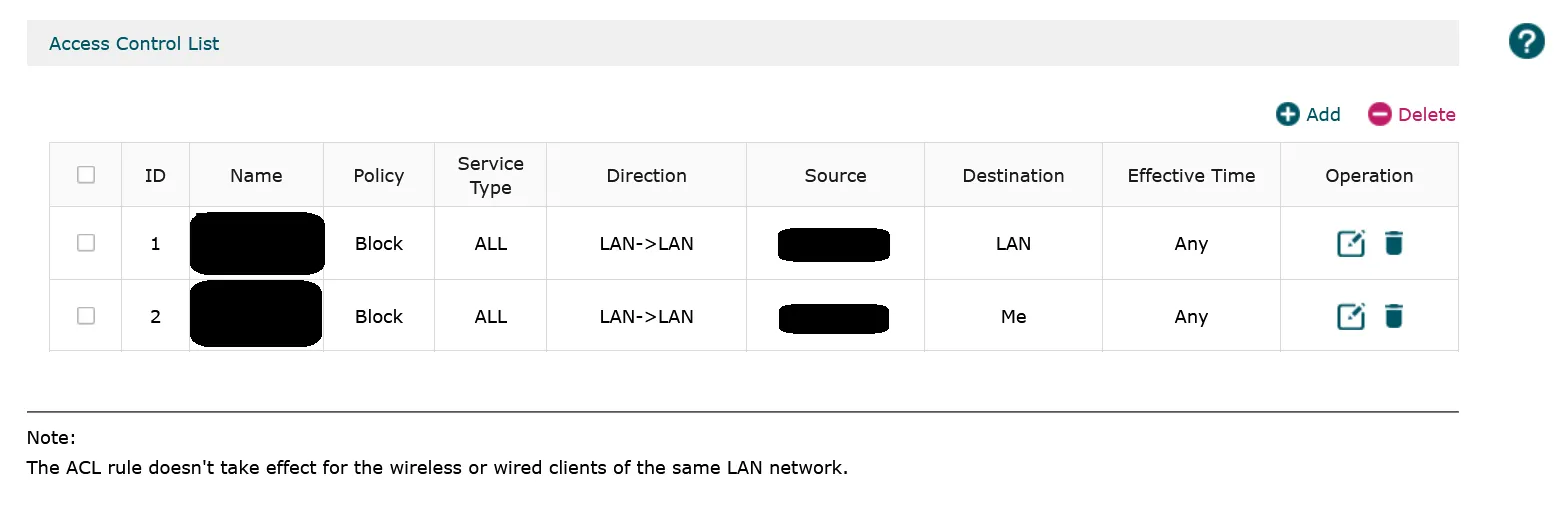
Create a firewall rule to prevent VLAN 50 from reaching VLAN 1.
Policy: Block
Direction: LAN → LAN
Source: VLAN 50
Destination: LAN
This allows internet access but blocks internal traffic.
5. Block Router Access
Prevent the VLAN from accessing the router UI.
Policy: Block
Direction: LAN → LAN
Source: VLAN 50
Destination: Router (Me)
Now the device cannot reach your router login page.
6. Verify IPv6
Make sure IPv6 isn’t bypassing your rules. If you’re not using it, ensure the VLAN only has link-local addresses.
What This Actually Protects
This setup limits lateral movement. If the device is compromised, it cannot easily reach:
- Servers (Unraid, Proxmox)
- Home Assistant
- SMB shares
- PCs and laptops
- Router/Management Devices
This doesn’t make the device safe. It just removes easy access to your internal network.
TL;DR
Put untrusted devices on their own VLAN, give them internet access, and block everything else.
- Define the VLAN on the router, switch, and AP
- Use tagged traffic between devices
- Keep AP management on the main LAN
- Use firewall rules for isolation
For devices that only need internet access, this is a simple and effective way to reduce risk without overcomplicating your network.