If something on Plex isn’t working correctly—missing episodes, buffering, wrong audio, or a file that won’t play—the fastest way to get it fixed is to report the issue directly through Overseerr. This sends me the details automatically, which makes the fix much quicker.
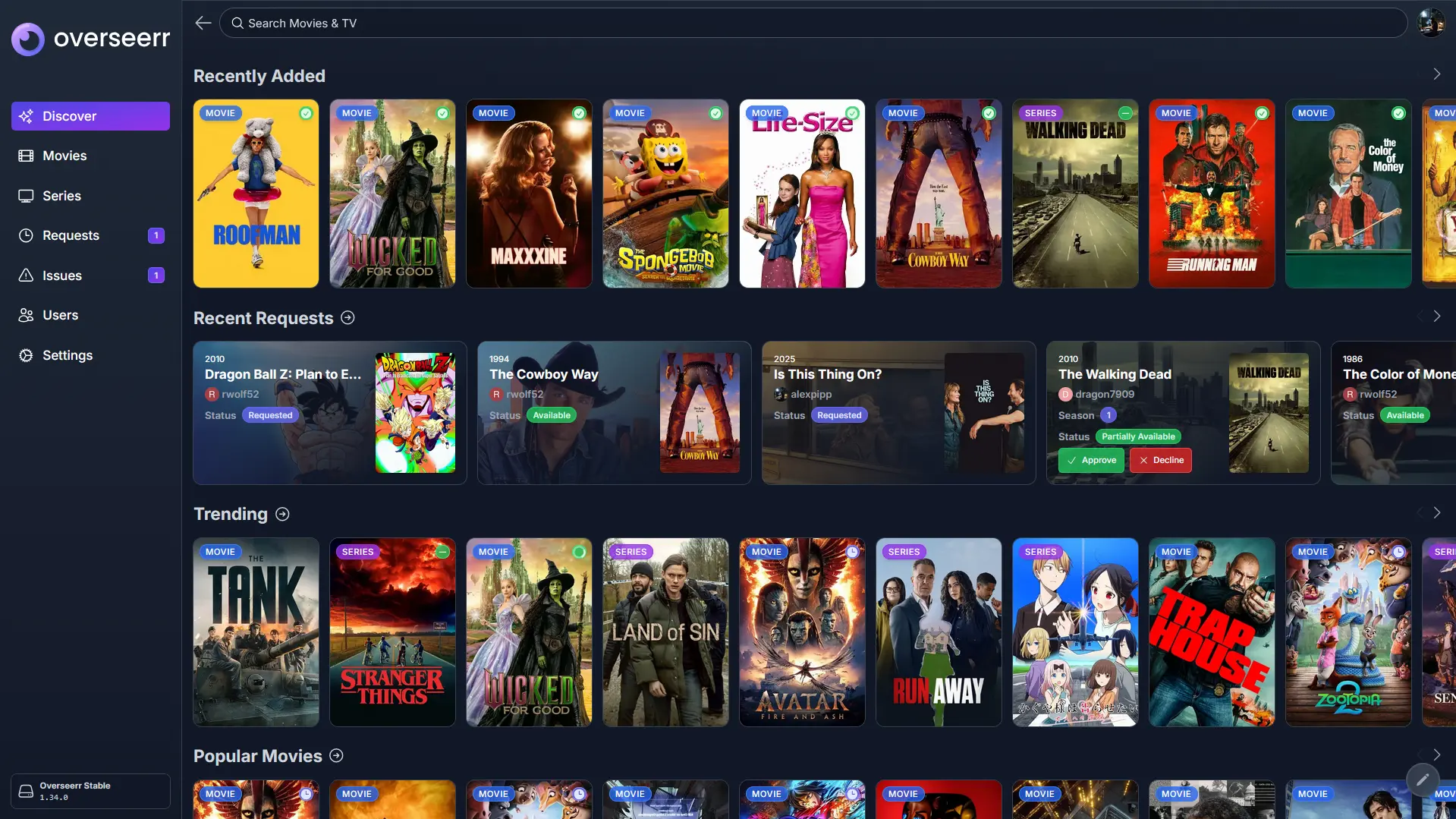
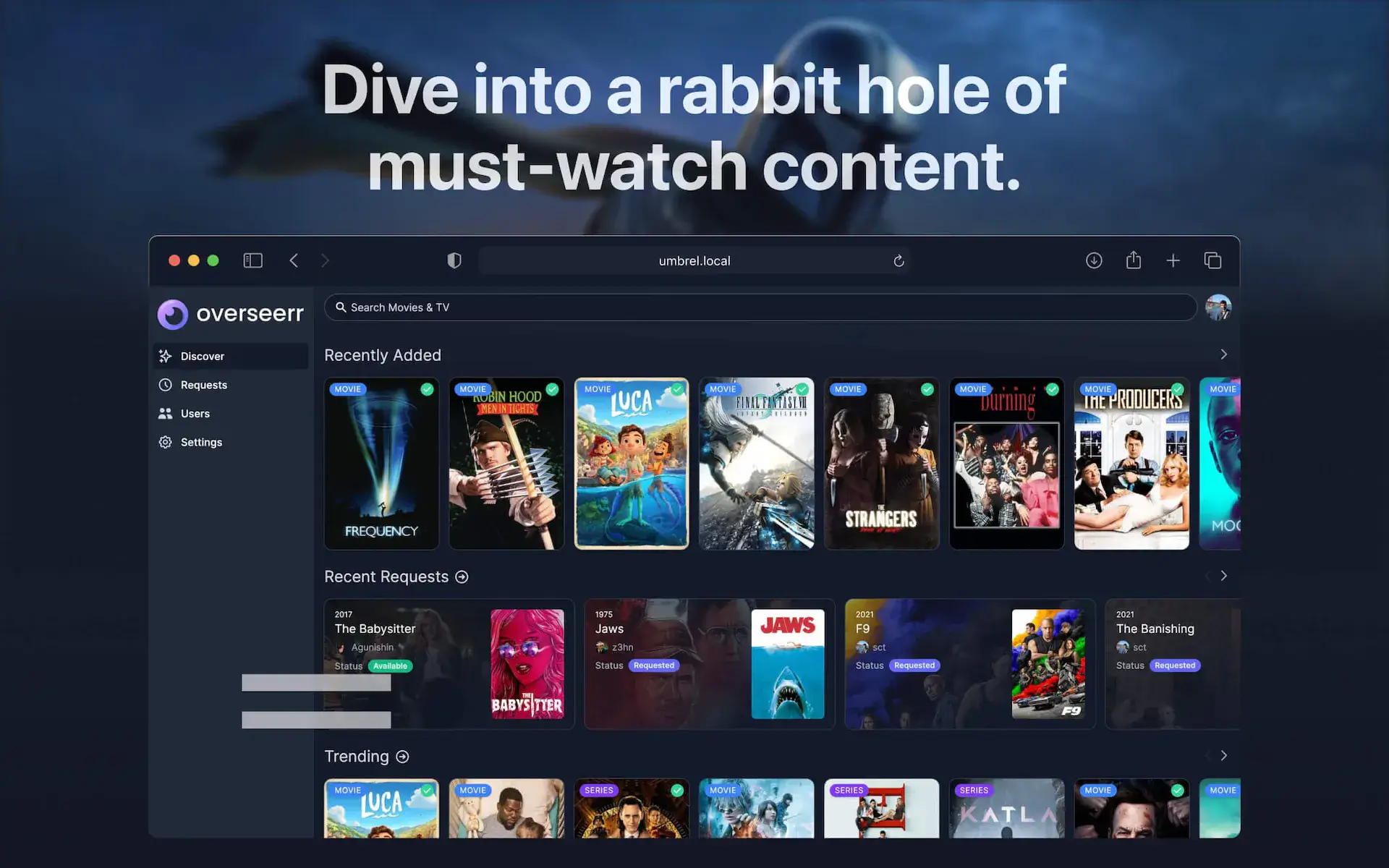
Open Overseerr
Open Overseerr on your phone, tablet, or computer and log in if needed.
Search for the Movie or TV Show
Use the search bar at the top to find the title that has the issue.
Examples: “Interstellar,” “The Office Season 3,” or “Breaking Bad S4E1.”
Select the correct title.
Click the “Report Issue” Button
On the title’s page, select the Report Issue button (often shown with a wrench or tool icon).
Choose the Type of Issue
Select the category that best matches the problem:
- Playback Issue
- Missing Episodes
- Wrong Movie or Wrong Version
- Subtitle Issue
- Audio Issue
- Other
Add a Short Description (Optional but Helpful)
A brief description helps speed up the fix.
Examples:
- “Season 2 Episode 5 won’t load.”
- “Movie only has Spanish audio.”
- “Subtitles are delayed by ~5 seconds.”
Submit the Report
Click Submit to send the report. I’ll receive it automatically and work on fixing the issue.
When You Should Report an Issue
Use Overseerr to report something when:
- A movie or episode won’t play
- Playback freezes or buffers excessively
- Episodes or seasons are missing
- The wrong movie downloaded
- Subtitles don’t work or are out of sync
- Audio is missing or in the wrong language
- A request shows as complete but nothing appears in Plex